Dark Mode & Tinted App Icons: One Icon, Six Appearances

On iPhone, iPad, and Mac, your app icon now ships in six appearances: default, dark, clear light, clear dark, tinted light, and tinted dark. You can supply your own versions or let the system generate the ones you skip. Android has its own themed appearance on top of that, and the web has a monochrome option most people never touch. The design work is the same everywhere: start from a shape that survives with no color at all, then add information back.
TL;DR:
- Six appearances on Apple platforms, all from one icon. watchOS, tvOS, and visionOS don't have them.
- Skip a variant and the system generates it. Supplying your own is about control, not compliance.
- In an Xcode asset catalog you add two extra 1024 px files: a dark one with a transparent background, and a grayscale tinted one.
- In Icon Composer you annotate three versions: default, dark, and mono. Mono drives all four clear and tinted appearances.
- Design the silhouette first. Tinted throws away hue, and Android throws away everything except shape.
- Nothing changed in 2026 that forces a redo. Most guides still describe the 2024 setup and leave out clear mode.
What are the six app icon appearances?
They're the ways iOS, iPadOS, and macOS can draw your icon on the Home Screen, picked by the user in Home Screen customization. Apple's Human Interface Guidelines list all six for those three platforms and mark watchOS, tvOS, and visionOS as having none.
| Appearance | What the user sees | What drives it |
|---|---|---|
| Default | Your full-color icon | Your default artwork |
| Dark | A subdued version against a dark backdrop | Your dark artwork, or a system-generated one |
| Clear light | Your icon rendered in light, colorless glass | The mono version (Icon Composer) |
| Clear dark | The same, in dark glass | The mono version (Icon Composer) |
| Tinted light | The tint color infused into the glass itself | The mono version, or your tinted file |
| Tinted dark | The tint color applied to the foreground | The mono version, or your tinted file |
That right-hand column is what makes it six appearances to show but only three versions to design: one for default, one for dark, and one grayscale version that drives the other four. In Icon Composer that grayscale version is called the mono annotation. The older asset-catalog route is narrower: it has a slot for a grayscale tinted file, and the system generates the clear appearances itself.
Two details from Apple's WWDC sessions are worth knowing. The user picks the tint, and it can be anything, a pale yellow included. And clear-mode glass is pinned: it doesn't follow the system transparency slider iOS 27 added, so you're designing for one fixed look rather than a range.
What happens if you don't provide a dark or tinted icon?
The system makes them for you. Apple's HIG says it "automatically generates variants you don't provide," and the Xcode documentation describes the generated treatment as "crafted intelligently to preserve design intent and maintain legibility."
So there's no rejection risk and no broken icon. What you give up is the decision. A generated dark version is the system's guess at how your colors should be subdued, and a generated tinted version is its guess at which parts of your icon should be light. If your icon is a bold shape on a solid color, the guesses are usually fine. If it relies on color to tell its parts apart, they often aren't.
Android reached the same place from the other side: since Android 16 QPR2 it derives a themed icon for any app that doesn't ship a monochrome layer. Our post on Android themed icons covers that half. On both platforms your icon gets the treatment either way now. The only question is who designs it.
One case where generation doesn't cover you: alternate app icons. If your app lets people pick from several icons, the HIG says each alternate needs its own dark, clear, and tinted variants.
Why should you design the silhouette first?
Because each appearance throws away a layer of information, and the last layer standing is the shape. If the shape works on its own, every other appearance is just adding things back.
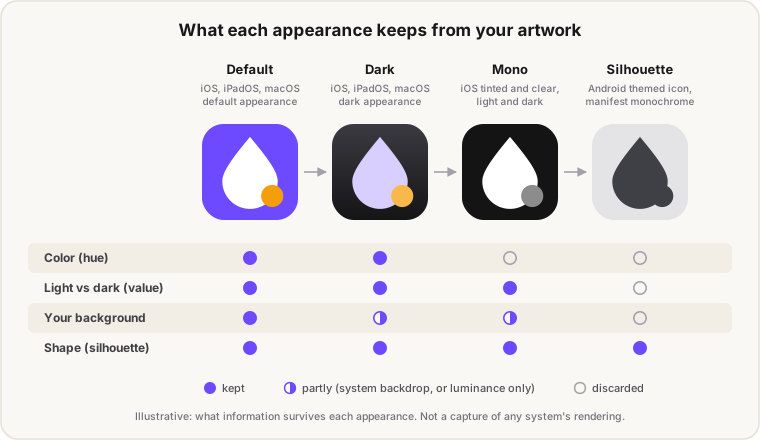
Walk it left to right:
- Dark keeps your colors but takes your background. In the asset-catalog route you supply a transparent background and the system draws its own dark backdrop.
- Mono throws hue away and keeps light versus dark. Two shapes that differed only in color, say a blue and a red of similar brightness, become the same gray.
- Silhouette is all that's left on Android, which tints the whole monochrome layer one color, and for a web manifest icon marked
purpose: "monochrome", where only the alpha channel is used.
Look at the small dot in the figure. It survives mono as a gray circle against white, then disappears into the main shape as a silhouette. That's the failure to design out: anything that only reads because of color or a subtle tone difference is gone by the end. Give separate elements real gaps between them, and keep the shapes bold enough to read in one flat color.
How do you add dark and tinted icons in Xcode?
In the asset catalog, set your app icon to Single Size, choose Any, Dark, Tinted from the Appearance menu, and drag in two extra 1024×1024 images. Apple's Xcode documentation gives the two rules that matter: the dark icon has a transparent background so the system's background shows through, and the tinted icon is a grayscale image.
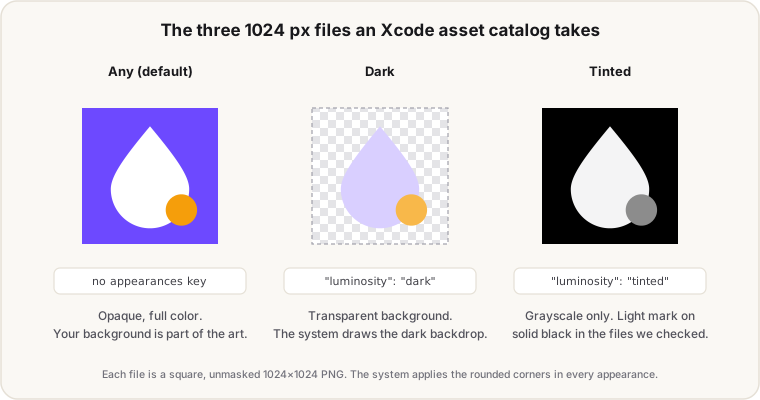
Xcode records the variants in AppIcon.appiconset/Contents.json as extra 1024 entries tagged with a luminosity appearance. This is the shape Xcode writes, taken from real projects whose files say "author" : "xcode":
{
  "images" : [
    { "filename" : "icon-light.png", "idiom" : "universal", "platform" : "ios", "size" : "1024x1024" },
    {
      "appearances" : [ { "appearance" : "luminosity", "value" : "dark" } ],
      "filename" : "icon-dark.png", "idiom" : "universal", "platform" : "ios", "size" : "1024x1024"
    },
    {
      "appearances" : [ { "appearance" : "luminosity", "value" : "tinted" } ],
      "filename" : "icon-tinted.png", "idiom" : "universal", "platform" : "ios", "size" : "1024x1024"
    }
  ],
  "info" : { "author" : "xcode", "version" : 1 }
}
We opened the actual PNGs in two open-source iOS apps that ship all three, and they agree on more than Apple's docs spell out. Both dark files are mostly transparent, 73% and 90% of their pixels, with a light-colored mark. Both tinted files are fully grayscale and fully opaque: a light gray mark on solid black. Treat that as the observed convention rather than an Apple rule. Apple only says "grayscale."
Three things trip people up here:
- A dark icon with a baked-in black background. It defeats the point of the system backdrop. Export it with transparency.
- A tinted icon in color. The system wants grayscale, because it maps your light and dark values onto the user's tint.
- A dark icon that's just the default icon darkened. Apple's advice is the opposite of dimming: start from the light icon, pick complementary colors, and avoid anything excessively bright.
Xcode's documentation describes these variant wells for iOS and iPadOS. For the Mac, the documented route to designing each appearance yourself is Icon Composer.
How does Icon Composer handle appearances?
Icon Composer asks for three annotations, default, dark, and mono, and generates all six appearances from them. Apple renamed these from light, dark, and tinted in 2025, which is why older tutorials use different words. Our Liquid Glass post covers the tool and the layer model. This section is about the appearance work.
The habit that saves the most time is splitting colors into separate layers before you export. In Apple's Translate example, putting the type on its own layer meant the dark variant took one fill change. Two colors sharing a layer can't be recolored separately.
For dark mode, the trap Apple demonstrates is the Dictionary icon. With no dark adjustments, its maroon bookmark disappeared against the dark background and the icon lost the coral red people recognize it by. The fix was a new fill for the dark annotation. Check every dark element against the dark backdrop, since an accent color that pops on white can vanish on near-black.
For mono, Apple's rule is to set at least one element to white, usually the most recognizable part, and map the rest to grays. Icon Composer converts automatically, but Apple says to tune it. We ran a plain grayscale conversion to see why that matters. Converting a violet mark with a small amber accent straight to grayscale gave the main shape a mid-gray of 153 out of 255 and turned the accent nearly white, at 252. The small detail became the brightest thing in the icon. Luminance doesn't know which part of your icon matters, so you have to decide it.
The engineers in Apple's 2026 Icon Composer lab add one more point: maximize the dynamic range in your mono annotation, with real darks and bright highlights, because the user's tint gets mapped across that range. A mono version that's all mid-grays turns into mush under a pale tint.
How do you design a good dark icon?
Keep it recognizably the same icon, and rethink the colors for a dark backdrop instead of dimming them. Apple's guidance comes down to four points:
- Same features in every appearance. Don't add or remove elements between variants. People find your app by its shape, and an icon that changes when they switch modes is harder to find.
- Start from the light icon. Choose complementary colors that reflect the default design, and avoid excessively bright images.
- Lean on colored backgrounds. Apple says colored backgrounds give the greatest contrast in dark icons, and its designers recommend them so that switching modes looks like a real change.
- No pure black or pure white. Apple supplies System Light and System Dark gradients tuned for the glass material and recommends them over flat black or white.
Apple Watch has no dark appearance at all, and the HIG goes further there: avoid a black background so the icon doesn't disappear into the black display.
What should a tinted or clear icon look like?
A grayscale version where the most important shape is the brightest thing on the canvas. Everything about the tinted and clear appearances comes from your light and dark values, so those values are the whole design.
| Do | Why |
|---|---|
| Make the key shape white or near-white | Guarantees contrast whatever tint the user picks, including pale ones |
| Map secondary parts to distinct grays | Separation has to come from value now, not hue |
| Use the full range, deep blacks to bright whites | The tint is mapped across that range |
| Keep a gap between elements that touch | Two close grays can read as one shape once tinted |
| Watch a custom background's brightness | Apple warns that background luminance can cost contrast in mono, and suggests its system backgrounds |
If you're shipping through the asset catalog rather than Icon Composer, this is your tinted file, and it covers the two tinted modes. In Icon Composer it's the mono annotation, and it drives clear light, clear dark, and both tinted modes at once.
What about Android and the web?
Both are simpler than Apple's six, and both lean on the silhouette even harder.
Android has one extra appearance: the themed icon. It comes from the <monochrome> layer in your adaptive icon, tinted from the user's wallpaper and theme. Since the tint can come out light or dark, the mark has to work both ways. Android 16 QPR2 and later derive one if you don't ship it, and Google's AEP guideline requires the layer outright. The XML and the layer specs are in our Android themed icons post.
The web has two separate mechanisms:
- Favicons can adapt with a
prefers-color-schememedia query inside an SVG favicon. Chrome, Firefox, and Edge honor it. Safari renders the SVG but ignores the query, so default to the variant that reads on a light tab. Details are in our favicon sizes guide. - Web app manifests have no dark-mode icon field. The icon member takes
src,sizes,type, andpurpose, and nothing keyed to color scheme. What exists ispurpose: "monochrome", which tells the browser to throw away the color and use the alpha channel as a mask. That's the silhouette test again, formalized.
| Platform | Appearances to plan for | What you supply |
|---|---|---|
| iOS, iPadOS | Six | Asset catalog: default, dark, tinted files. Or an Icon Composer file |
| macOS | Six | Icon Composer file for per-appearance control |
| watchOS, tvOS, visionOS | One | No appearance variants |
| Android | Two (standard, themed) | <monochrome> layer in the adaptive icon |
| Web favicon | Light and dark tabs | SVG with a prefers-color-scheme query (ignored by Safari) |
| Web app manifest | One, plus optional monochrome | An icon with purpose: "monochrome" |
Did anything change in 2026?
Not in a way that forces a redo. Apple refined the Liquid Glass guidance in its app icon guidelines in June 2026, and the six-appearance list came through unchanged. iOS 27's new transparency slider doesn't affect clear-mode icons, and Android 17 didn't touch the icon spec.
The bigger issue is that the top-ranking guides were written for iOS 18 in 2024. They predate clear mode and the mono annotation, and they stop at Apple. If you set up dark and tinted variants back then, the clear appearances your icon gets today are ones you never designed. Check them on a device or in Icon Composer's preview, and move to a mono annotation if they need work.
Can you make dark and tinted variants with an AI generator?
Yes, but not by generating each one separately. Ask an image model for "the same icon, dark mode version" and you get a new drawing. The proportions shift, and sometimes an element turns up that wasn't there before. Apple's guidelines specifically warn against variants that swap elements in and out, because people lose track of your app when they switch modes.
The workflow that works: generate the default once, then derive the variants from that exact artwork.
- Dark: take the mark on a transparent background, lighten its colors so they read against near-black, and leave the background empty.
- Tinted or mono: convert that same mark to grayscale, then fix the values by hand so the main shape is the brightest. As the test above showed, a straight conversion can get that backwards.
- Android monochrome: the same mark as a single flat color on transparency, with gaps opened up anywhere two parts only separated by color.
Our generator already does the first step for you. Every IconsCove generation goes through background removal before you download it, so a regular icon arrives as the mark on transparency, which is the raw form the dark file and the Android foreground both want. The app icon type is drawn as a full-bleed tile instead, which makes it your default appearance.
To be straight about our own export: the free App Icon Generator writes a complete AppIcon.appiconset, but its Contents.json lists one appearance only, with no luminosity entries. Anyone shipping that pack as-is gets the system-generated dark and tinted versions. To control them, keep the iOS 1024 entry, add the two entries shown above, and drop in your dark and tinted files. Apple documents these variants on the Single Size path, so you can remove the per-size iOS entries when you do. The Android side of the same pack has a matching gap, no <monochrome> line, which our Android themed icons post shows how to add.
FAQ
Do I have to provide a dark mode app icon?
No. If you skip it, iOS, iPadOS, and macOS generate one automatically, and the app ships fine. You provide your own when you want to control how the icon is subdued. The one exception is alternate app icons, which Apple says need their own dark, clear, and tinted variants.
Should a dark app icon have a transparent background?
In the Xcode asset catalog, yes. Apple's documentation says to provide the dark icon with a transparent background so the system-provided background shows through. In Icon Composer you set the dark background as part of the dark annotation instead.
What format is a tinted app icon?
A 1024×1024 grayscale image. The system maps its light and dark values onto the tint the user chooses, so color in the file is meaningless. In the shipped projects we examined, it was a light gray mark on a solid black background.
What is the difference between clear and tinted app icons?
Clear renders your icon in colorless glass, light or dark. Tinted adds the user's chosen color, either infused into the glass (tinted light) or applied to the foreground (tinted dark). In Icon Composer all four come from the same grayscale mono annotation. In an asset catalog you supply only the tinted file, and the system generates clear.
Need the pixel sizes for every platform rather than the appearance rules? The App Icon Size Chart has the full tables. Working on the layered Liquid Glass version itself? Liquid Glass app icons covers Icon Composer and the iOS 27 changes.